Writing with Content Studio, step by step
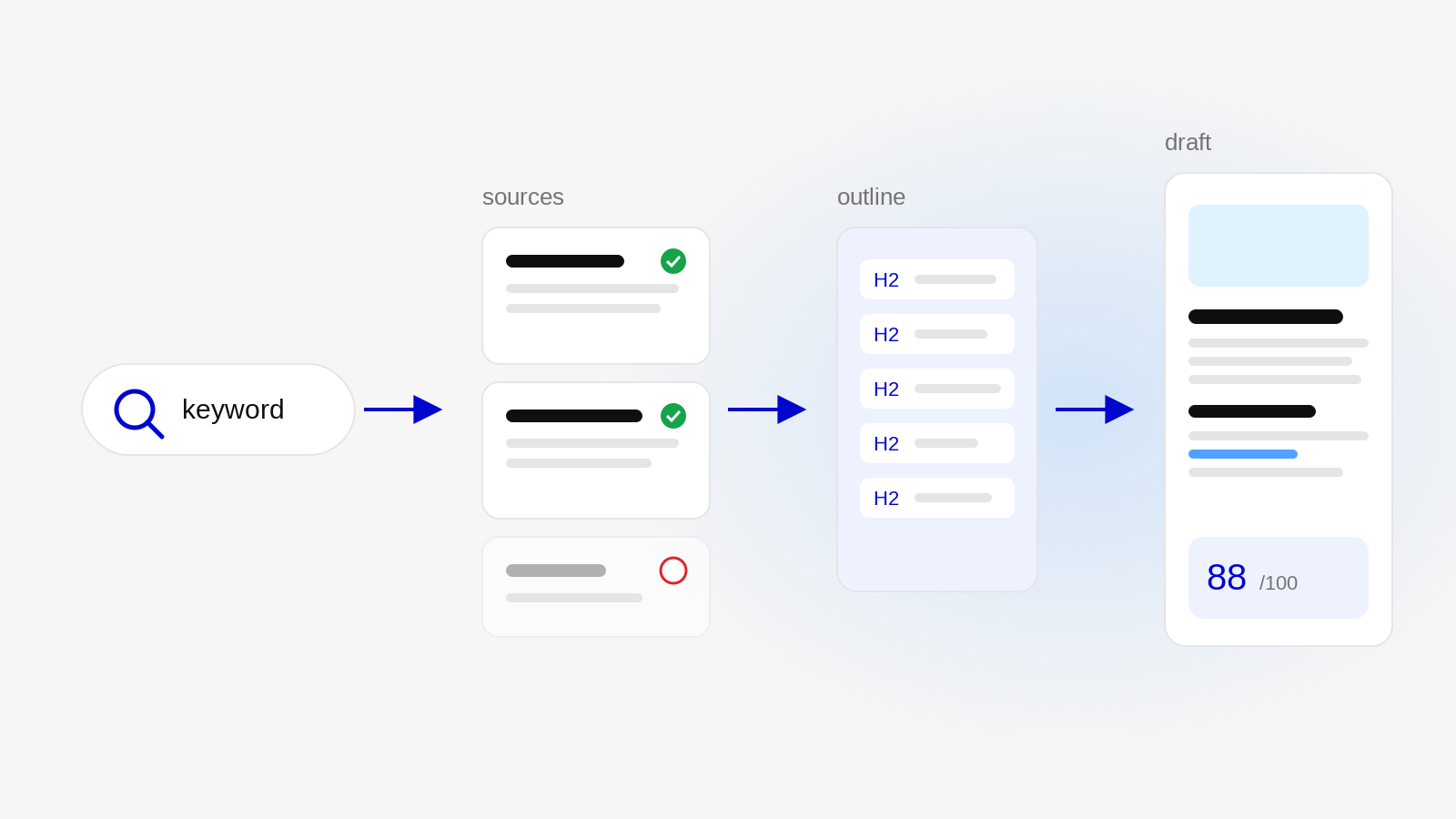
Content Studio is the Answer Socrates article writer: it turns one keyword into a draft built from the pages ranking now, through seven steps you can see and change. Each step replaces a guess a plain AI prompt would make, so the draft starts closer to something you can publish.
Key takeaways
- The sources step decides which facts the article may use: the writer is told the research notes from the pages you keep are the only source for stats, prices and named claims.
- The outline is the cheapest place to fix an article: you set headings, order and word count per section, and "Plan again" costs no credits.
- Writing costs 1 article credit per 2,500 words, articles are capped at 10,000 words, and the cost shows before you press Write article.
- Every draft is scored out of 100 on six parts (SEO, Readability, Topic coverage, Voice, Structure, SERP benchmark), and a draft under 80 gets one automatic revision pass.
- Content Studio picks one of six article types from your keyword's wording, so "vs" gives a comparison and "best" gives a roundup.
Content Studio turns one keyword into a sourced draft
Content Studio is the article writer inside Answer Socrates. You give it a keyword, and it reads the ranking pages (the pages in Google's results for that keyword right now), plans the article with you, writes it, scores it and hands you a draft to edit and publish.
The point is not speed. A plain chatbot writes from memory, so it guesses at facts, length and what the reader wants. Each Content Studio step replaces one of those guesses with something you can see and change.
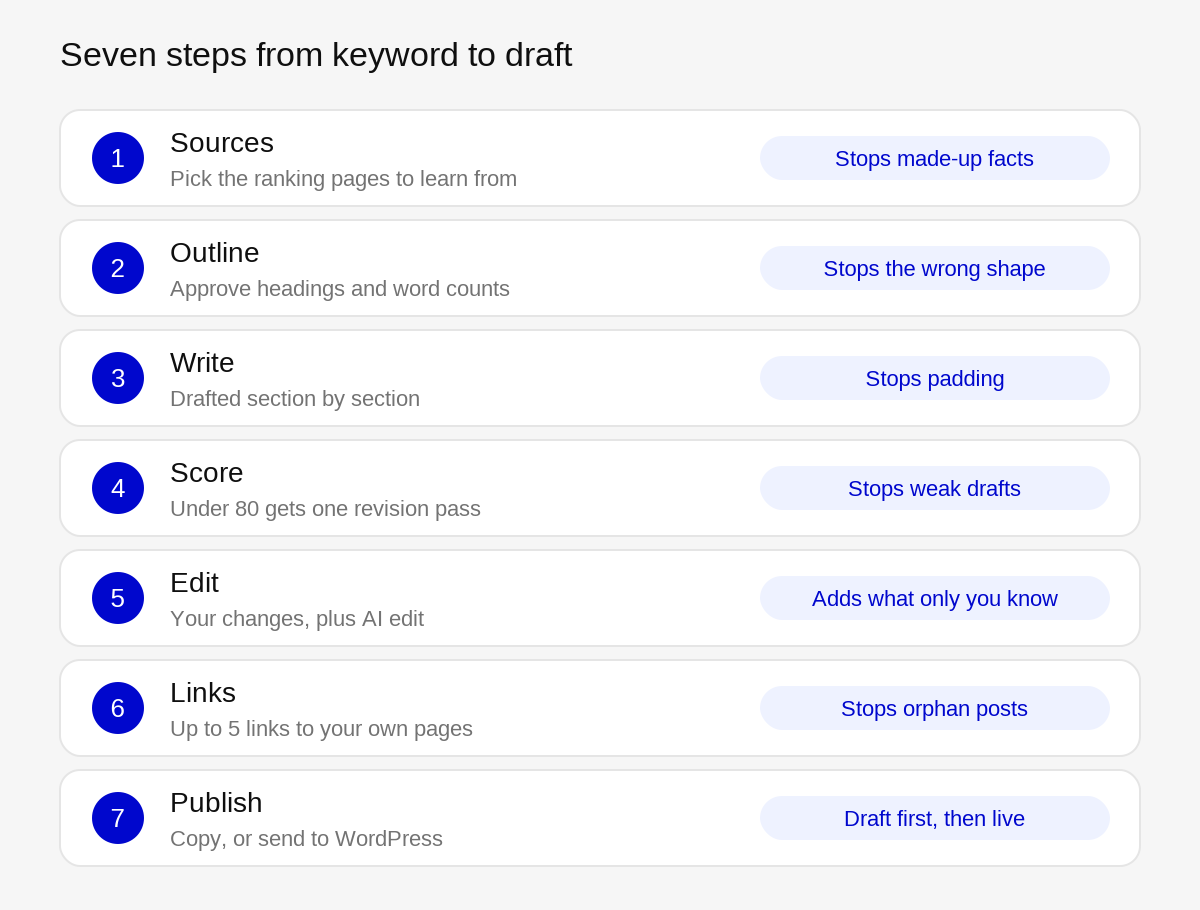
- Sources. You pick which ranking pages the article learns from.
- Outline. You approve the headings, the order and the word count for each section.
- Write. The draft is written section by section, in your brand voice.
- Score. A checker scores the draft out of 100. Under 80, it gets one automatic revision pass.
- Edit. You change what you want, by hand or with AI edit.
- Links. Links to your own pages are added on phrases already in the text.
- Publish. You copy it out, or send it to WordPress as a draft or live.
Set up your site and voice once
Content Studio works per project, and a project is one website. You start on the public Content Studio page by typing your site address.
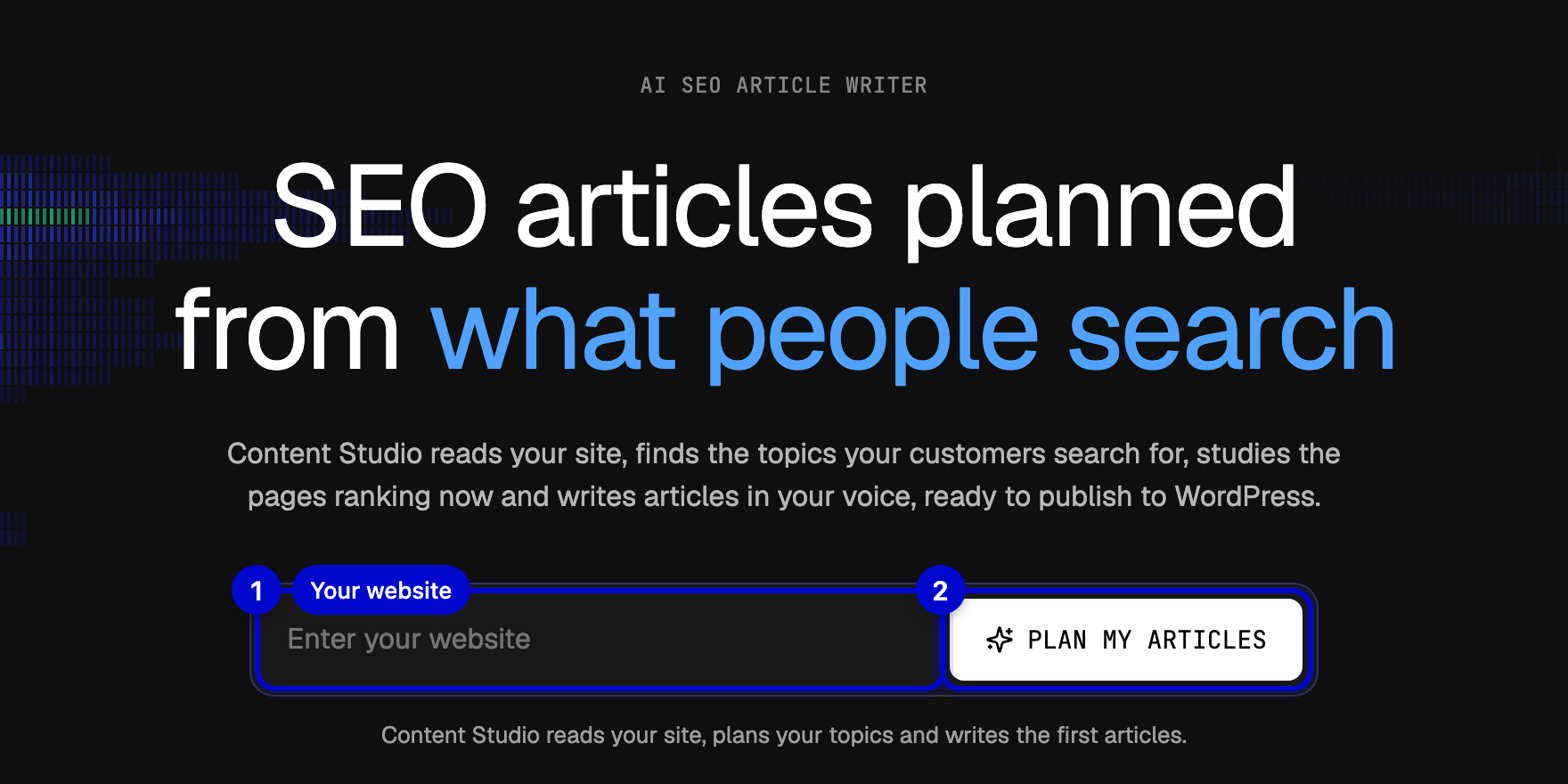
Setup reads your site to work out what you sell, who to, in which market and against whom. It then builds a topic plan from real Google searches.
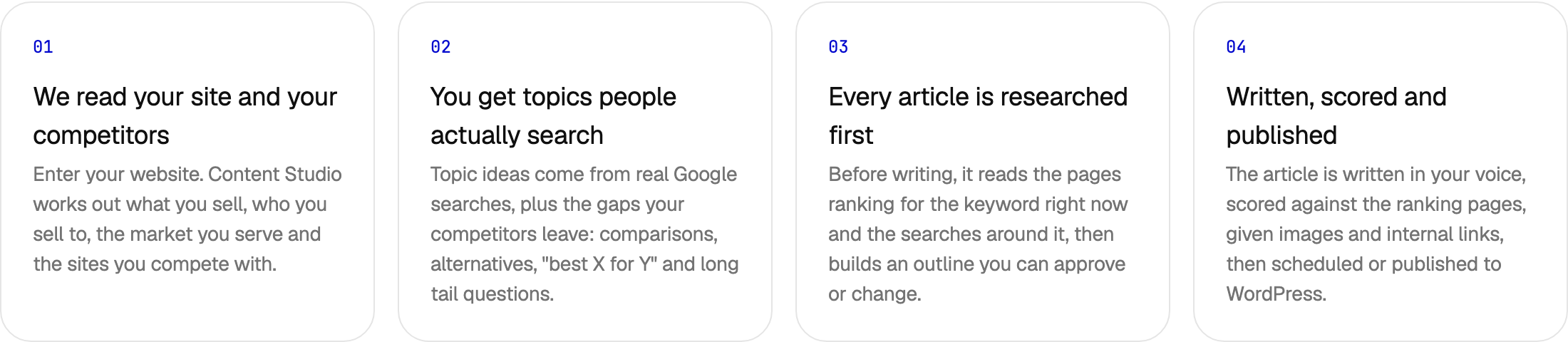
Two settings shape every article, so set them during setup:
- Writing style. Pick a template, or leave it on Smart Style Selection. "Learn my style" reads up to three of your own articles and writes down concrete habits (point of view, sentence length, how you open and close) for the writer to follow.
- Images. Pick a style for the featured image and how many images go inside the article (none to three). "No images" skips the image step.
Six article types, picked from your keyword
Content Studio writes six kinds of article, picked from the words in your keyword, each with its own structure. A reader who searched "X vs Y" wants a winner, not a definition.
| Article type | Picked when the keyword has | What the structure gives you |
|---|---|---|
| Comparison (X vs Y) | "vs" | An overview of each, one section per factor with a winner, then "Which one fits you" |
| Alternatives | "alternative" | A ranked list of replacements, each with best for, pros and cons |
| Review | "review" or "worth it" | A score out of 10, pros and cons, pricing only if the research shows it |
| Roundup / Listicle | "best", "top" or "top 5" | A numbered ranked list near the top, then one section per pick |
| How-to Guide | "how to", "how do", "guide", "get started" | One "Step N" section per step, then common mistakes |
| Informational | anything else | The answer first, then broad to specific sections |
Most types end with an FAQ and a short final call (the product calls it a Verdict): the pick for the reader, two or three "If you X, choose Y" lines, and one first step.
How to do it in Answer Socrates
Open an article from your plan or calendar and the steps run in order.
Step 1: Pick your sources
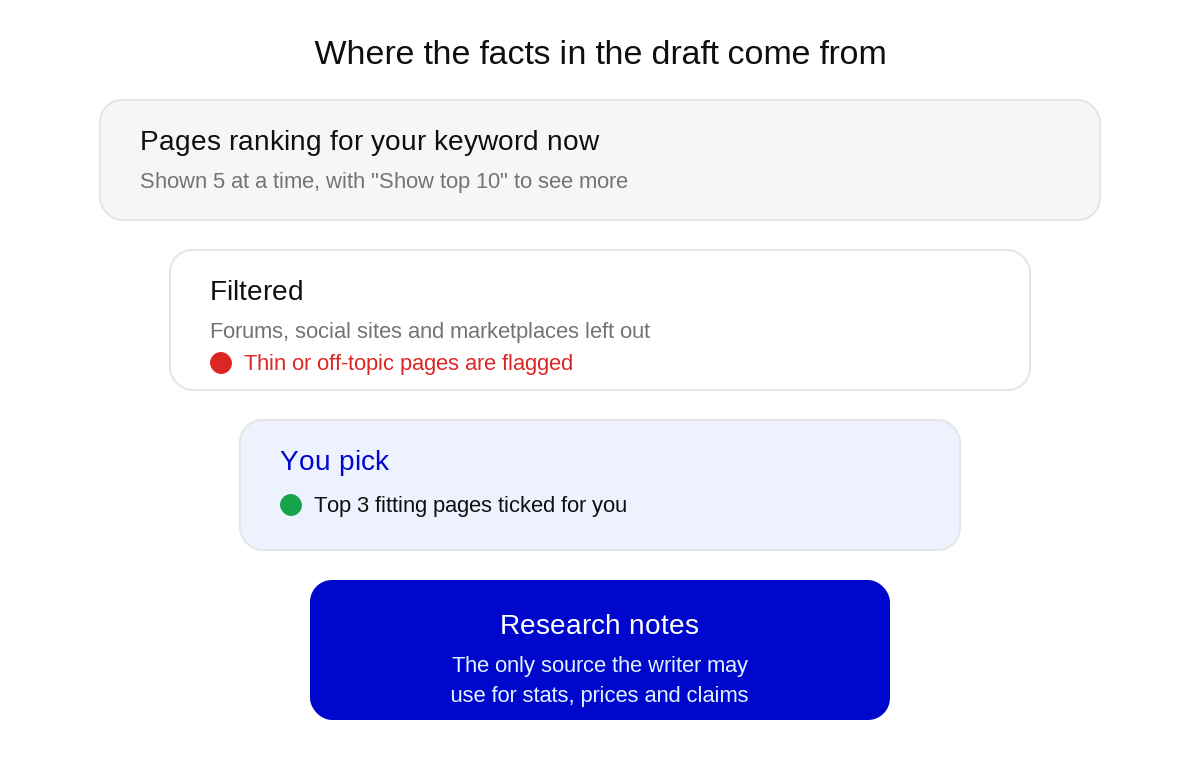
Content Studio shows the ranking pages in rank order, five at first, with "Show top 10" to see more. Each page gets a 0 to 100 relevance score shown as FIT (how well its title and body cover your keyword, plus its length), a word count, a heading count and a Domain Rating (DR). Thin pages are flagged "Thin" and low-relevance ones "Off-topic", and both start unticked. The top three good fits are ticked for you.
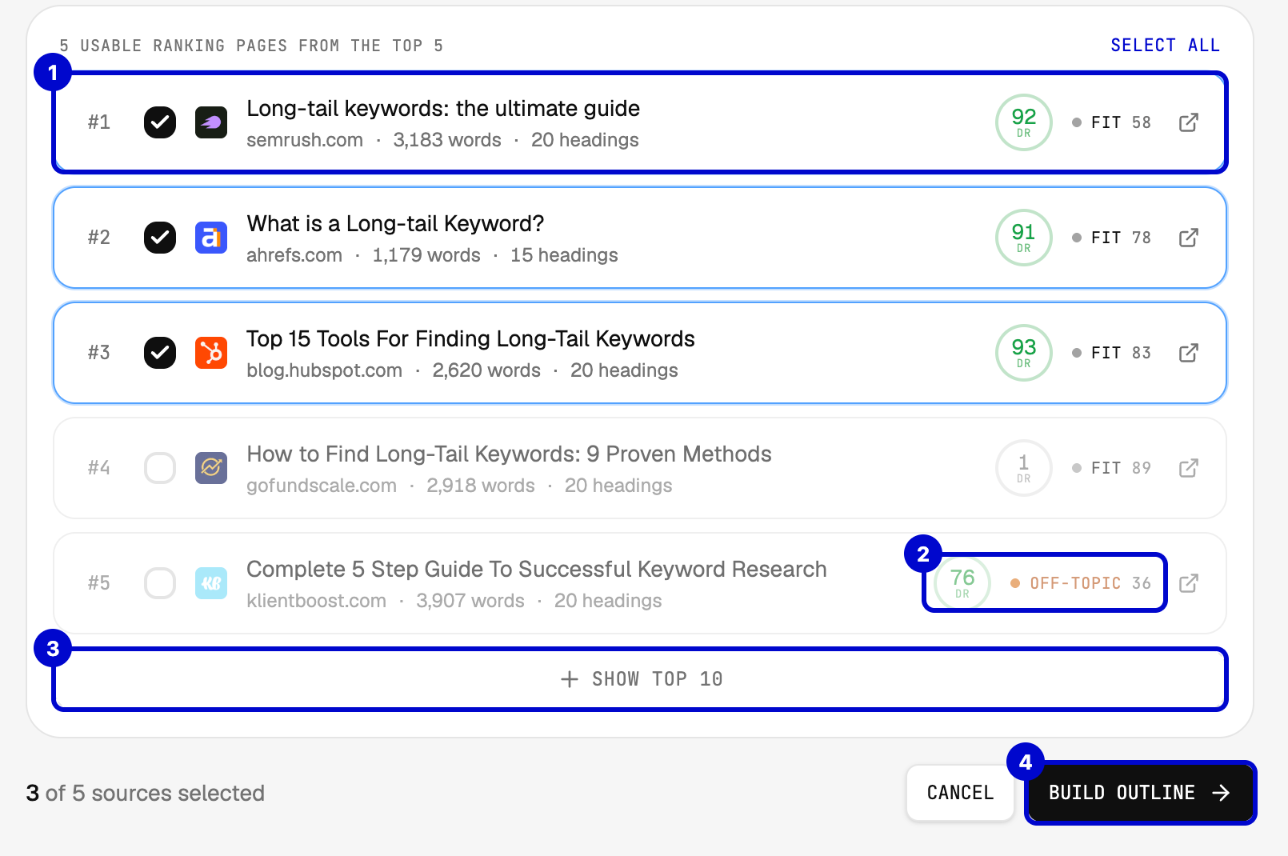
The pages you keep become the research notes, and the writer is told those notes are the only source for stats, prices and named claims. So this step decides which facts the article may use.
If no usable pages come back, "Build without sources" still works. The article is then written conservatively, without specific stats or prices: safer than a made-up number, but thinner.
Step 2: Review the outline
"Review the outline" is the plan the writer follows exactly. Each section is a row with a heading, a short description (a note to the writer) and a word count. Drag rows to reorder, edit headings, add or remove sections, and add sub-headings for a list or steps.
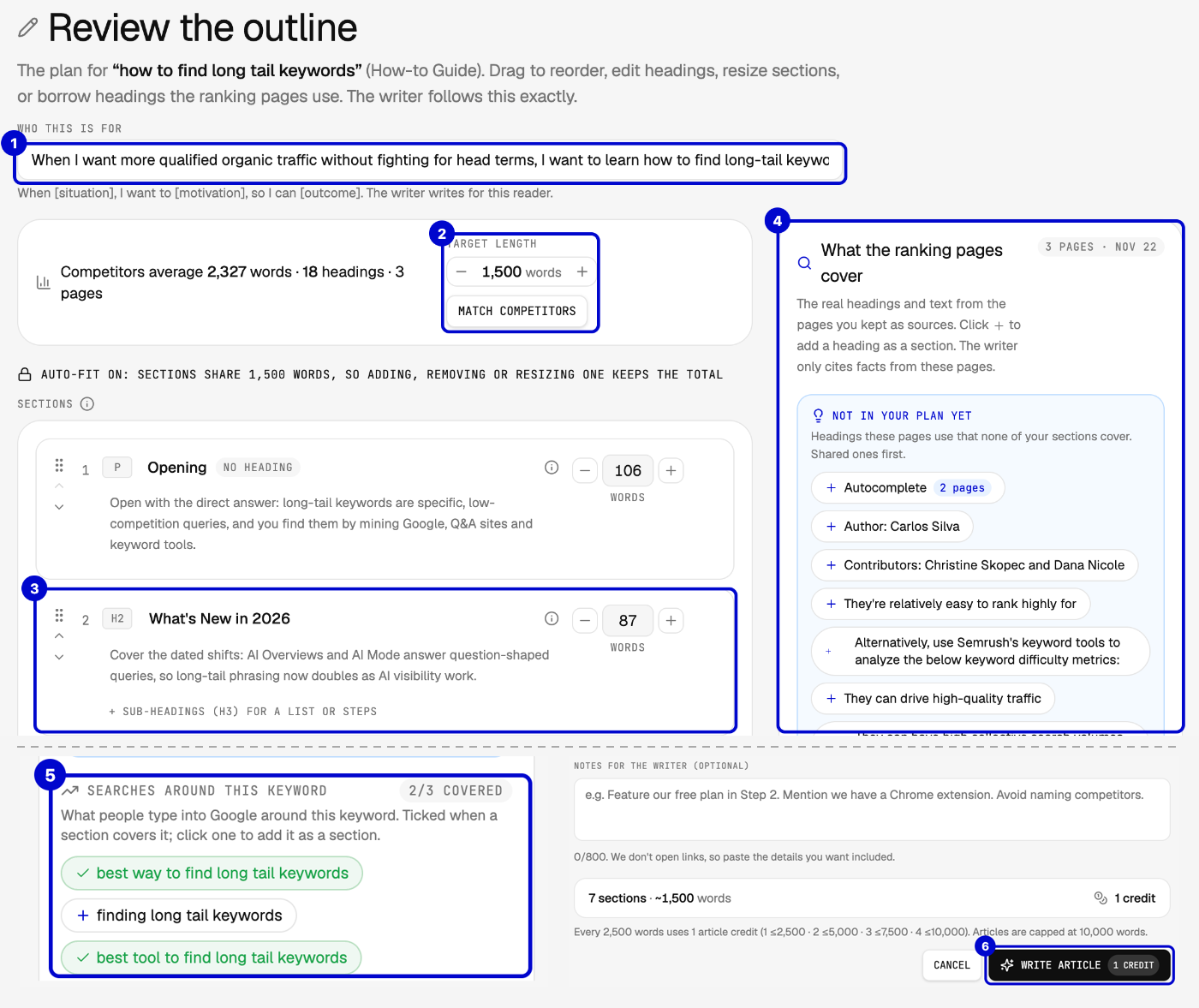
Three things on this screen matter most:
- Who this is for. One line in the form "When [situation], I want to [motivation], so I can [outcome]." The writer writes for that reader.
- What the ranking pages cover. The real headings from the sources you kept. Headings none of your sections cover are listed under "Not in your plan yet", and one click adds one as a section.
- Searches around this keyword. What people type into Google near your keyword, ticked when a section covers it. Unticked ones are gaps.
The notes box (up to 800 characters) is for what only you know: "Mention our free shipping over $40" or "Do not name competitors". It does not open links, so paste the facts themselves.
Writing costs article credits: 1 credit per 2,500 words, so up to 2,500 words is 1 credit and 5,000 words is 2. Articles are capped at 10,000 words. The screen shows the cost before you press "Write article", and "Plan again" (a fresh outline from the same sources) costs nothing.
Step 3: Let it write
The article moves through Researching, Writing, Scoring, Tidying and, if images are on, Creating image. It usually takes 3 to 8 minutes. You can close the page; the bell tells you when it is ready in Content History.
The draft is written one section at a time, each aimed at its word count. The writer is asked to land within 10% of your target (1,350 to 1,650 words for a 1,500-word plan), and a section that drifts further is tightened or expanded with specifics from the research, not filler.
Step 4: Read the score
Every draft gets a score out of 100, split into six parts: SEO, Readability, Topic coverage, Voice, Structure and SERP benchmark. If the first draft scores under 80, one automatic revision pass runs before you see it.
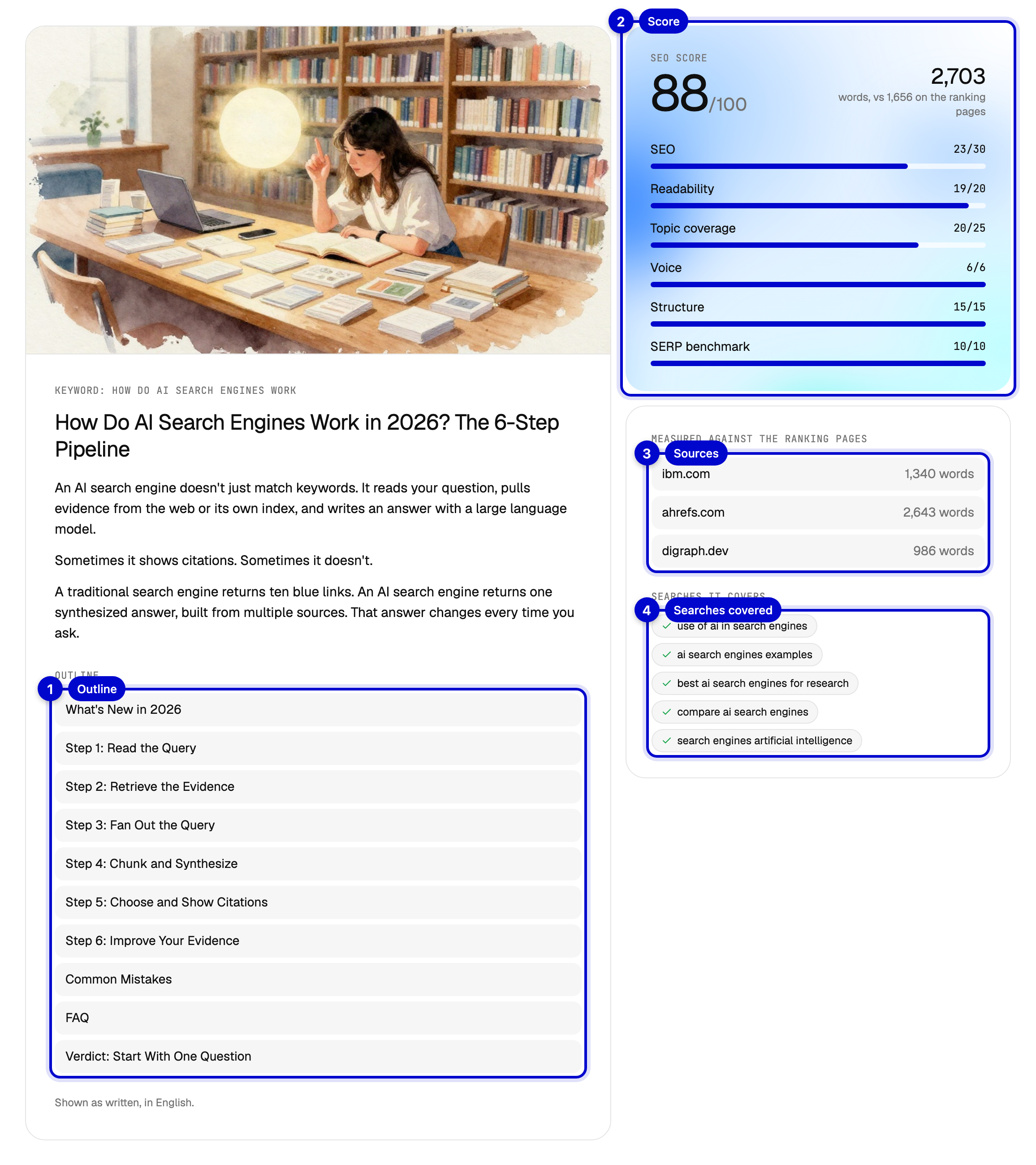
The score is a checklist, not a ranking promise. One check is length: it passes when the draft is within 10% of the target. Use the score to find the weak part (low Readability, low Topic coverage) and fix that part.
Step 5: Edit the draft
The draft opens in an editor next to a "Live SERP Research" panel. It compares your draft with the ranking pages (words, headings, links) and lists the terms those pages use, with your count and a suggested range, updated as you type.
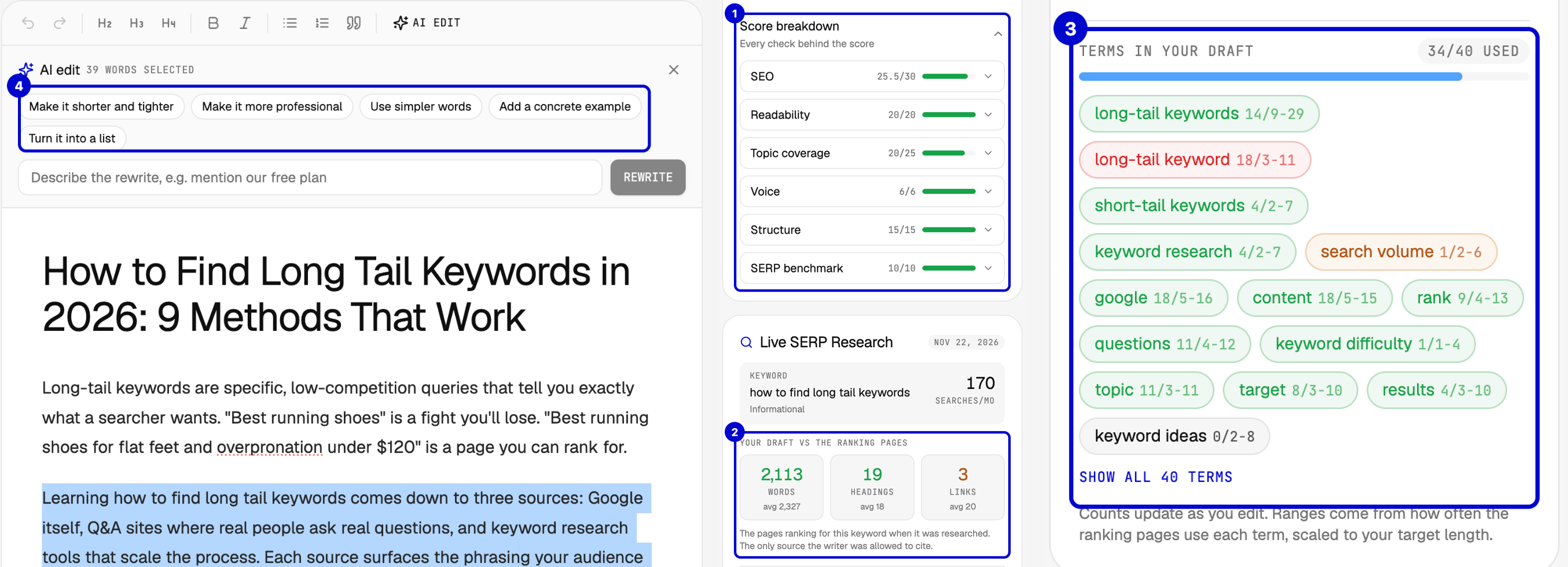
Select text and use AI edit: quick prompts ("Make it shorter and tighter", "Use simpler words", "Add a concrete example", "Turn it into a list", "Make it more professional") or your own instruction.
This is also where you add what no tool can write: a photo you took, a number from your own sales, a mistake a customer made.
Step 6: Add internal links
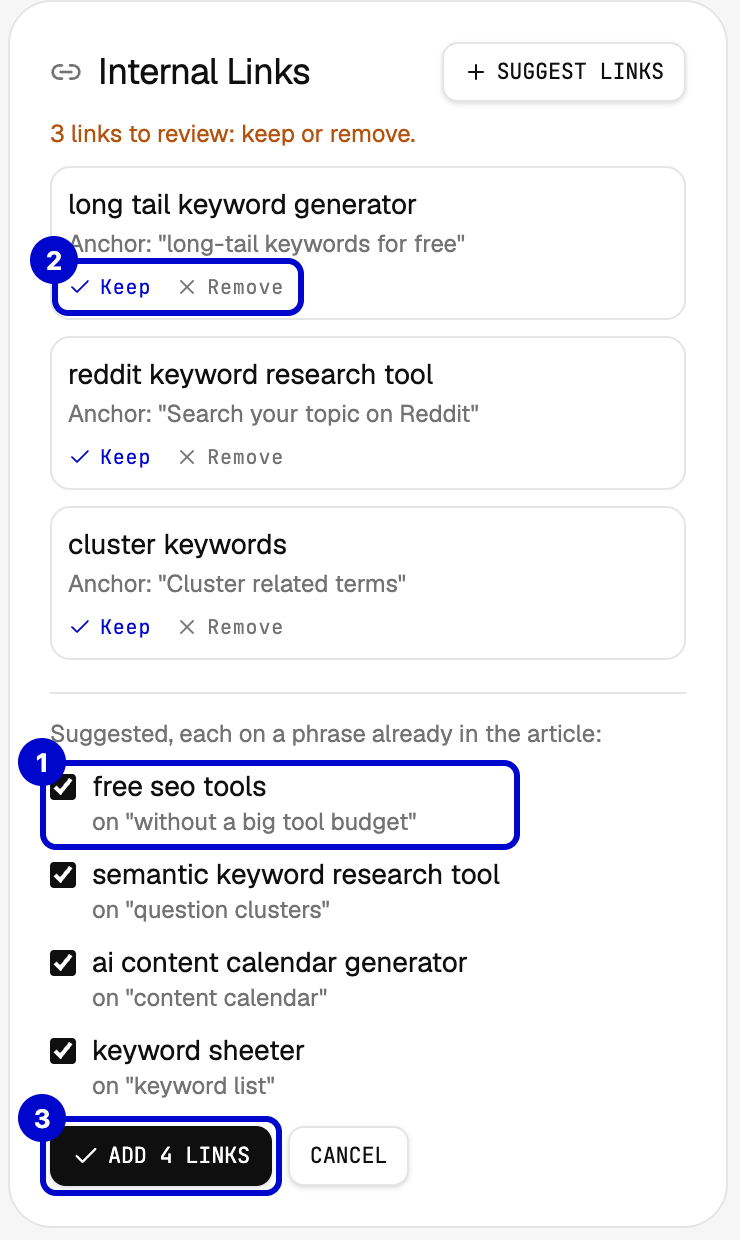
Internal links point from this article to other pages on your own site. Content Studio reads your sitemap and suggests up to five, each on a phrase that already exists in the article body. The phrase is checked in code, so a made-up anchor is dropped.
Step 7: Publish or export
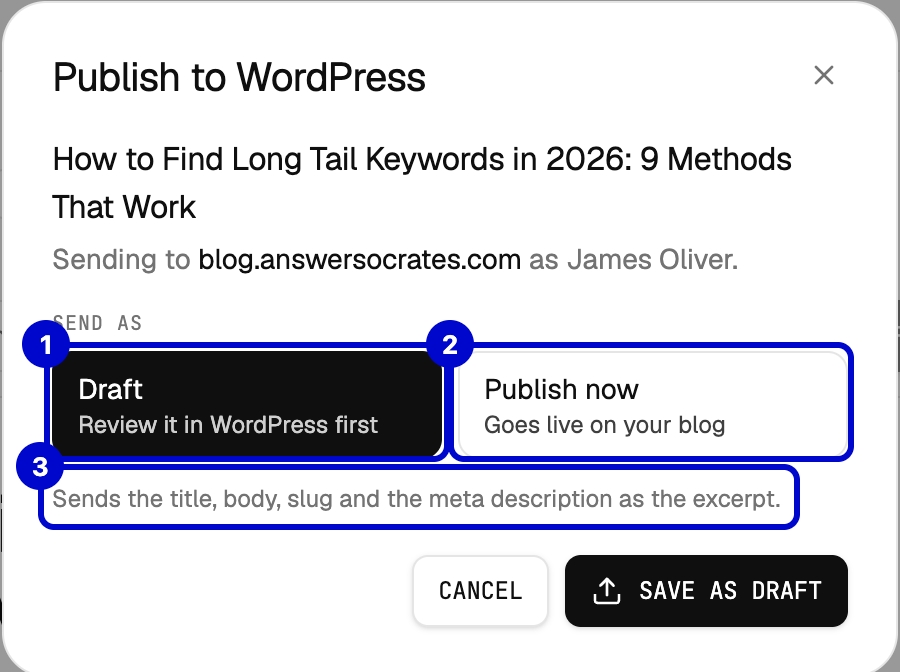
Copy the article as Markdown or rich text (for Google Docs or WordPress), or download a .md file. To publish directly, connect your site in Settings under Publish Controls. WordPress, Webflow, GitHub (for Astro, Next.js, Hugo and other Markdown sites) and a webhook (for any other platform, as JSON) can be connected, and if you connect more than one you choose each time you publish. For WordPress you use a WordPress Application Password, then choose "Draft" (review it in WordPress first) or "Publish now". The title, body, slug, meta description (as the excerpt) and, if you tick "Include images", the images all go across.

Images, if you chose a style, are made after the writing. Each article gets a featured image and up to three in the body. Each image can be respun once.

A made-up example: a coffee roaster's first article
A made-up example: a small coffee roaster sells beans online and wants to rank for "pour over vs french press".
- The keyword has "vs", so Content Studio picks the Comparison type.
- The sources include two brewing guides and a kitchen-gear roundup flagged Thin. The roaster keeps the two guides and a long how-to from a coffee magazine.
- The outline has an overview of each method, sections on taste, cost, time and cleanup, each with a winner, then "Which one fits you". "Not in your plan yet" shows two sources cover grind size, so the roaster adds it.
- In the notes, they write: "Mention our medium roast works for both."
- The plan comes to about 1,900 words, so it costs 1 article credit.
- The draft scores 84. Readability is the weakest part, so they use AI edit with "Use simpler words" on two long paragraphs.
- Suggest links offers their grind guide and their medium roast product page. They keep both and send the post to WordPress as a draft.
The roaster's time went on picking sources, one outline change, one note and two edits: judgment calls the tool cannot make.
The same thing in Ask Socrates
You can also start an article from the Ask Socrates chat. Ask it to write the article for a keyword, for example:
Ask Socrates turns the conversation into a brief, shows the article credit cost on a card and waits for you to approve. It then researches, outlines and writes in the background, using the recommended sources and suggested outline, so you skip steps 1 and 2. The length is 1,500 words unless you name one. Ask "how is it going?" to see the brief, outline or draft so far, free.
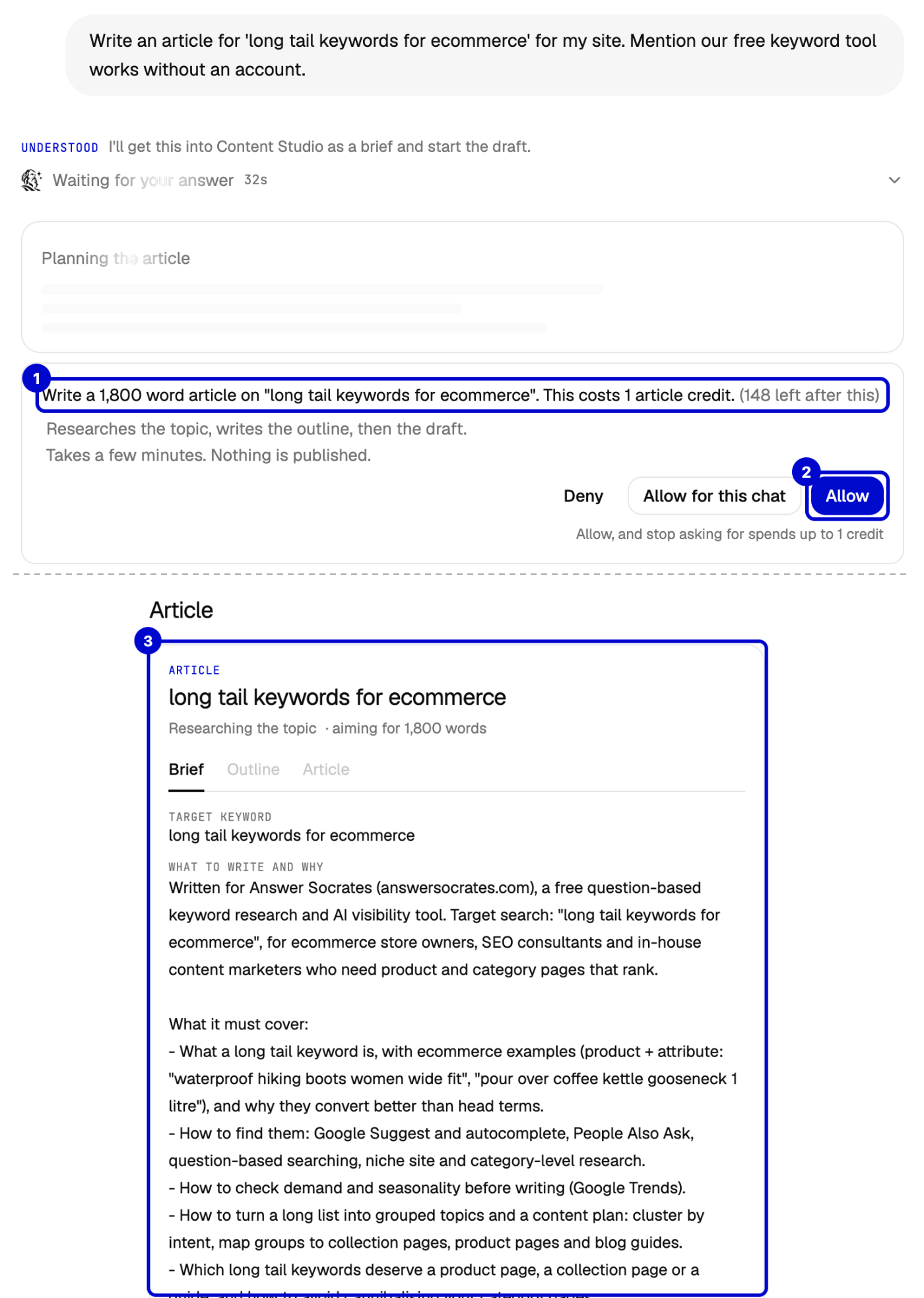
Nothing is published until you ask. "Send it to WordPress" sends a draft unless you say live, and asks on a card first. If you only want it planned for now, the chat can put it in Content Studio with the brief as its notes, at no cost.
| If you want to | Use |
|---|---|
| Choose sources and shape the outline yourself | Content Studio, steps 1 and 2 |
| Turn a finding from a chat into an article quickly | Ask Socrates, "write the article" |
| Plan it now and write it later | Ask Socrates, ask to plan it in Content Studio |
| Write many planned articles on their dates | Content Studio calendar with automatic writing on |
What Content Studio cannot do for you
Content Studio is good at research and structure. It is weaker at experience, so plan for that.
- It only knows what the sources say. If the ranking pages are out of date, the facts will be too. Check every number before you publish.
- It does not know your business beyond setup and your notes. Prices, stock, guarantees and opinions have to come from you.
- The score checks form, not truth. A high score means the draft is readable and covers the topic. It does not mean every claim is right.
- The type is picked from wording. Phrase the keyword the way you want the article shaped.
Google's position is that "appropriate use of AI or automation is not against our guidelines", but content made mainly to manipulate rankings is spam [1]. So the draft is a start, not a finish: read it, fix it, and add something only you could add.
Where to go next
| If you want to... | Read |
|---|---|
| Decide which articles to write first | From cluster to content plan: what to write first |
| Write better notes for the writer | Content briefs: what to give a writer (or an AI) |
| Find what the top pages are missing | Information gain: adding what other pages lack |
| Choose which pages link to which | Internal links: connecting your pages |
| Remove the patterns that make AI text obvious | Making AI writing sound human |
| Set up the WordPress connection | Publishing to WordPress from Content Studio |
| Publish to Astro, Hugo or Next.js through GitHub | Publishing to Astro, Hugo and Next.js from Content Studio |
Sources
- Google Search's guidance about AI-generated content, Google Search Central Blog, 2023
- Creating helpful, reliable, people-first content, Google Search Central, n.d.
