Publishing to WordPress from Content Studio
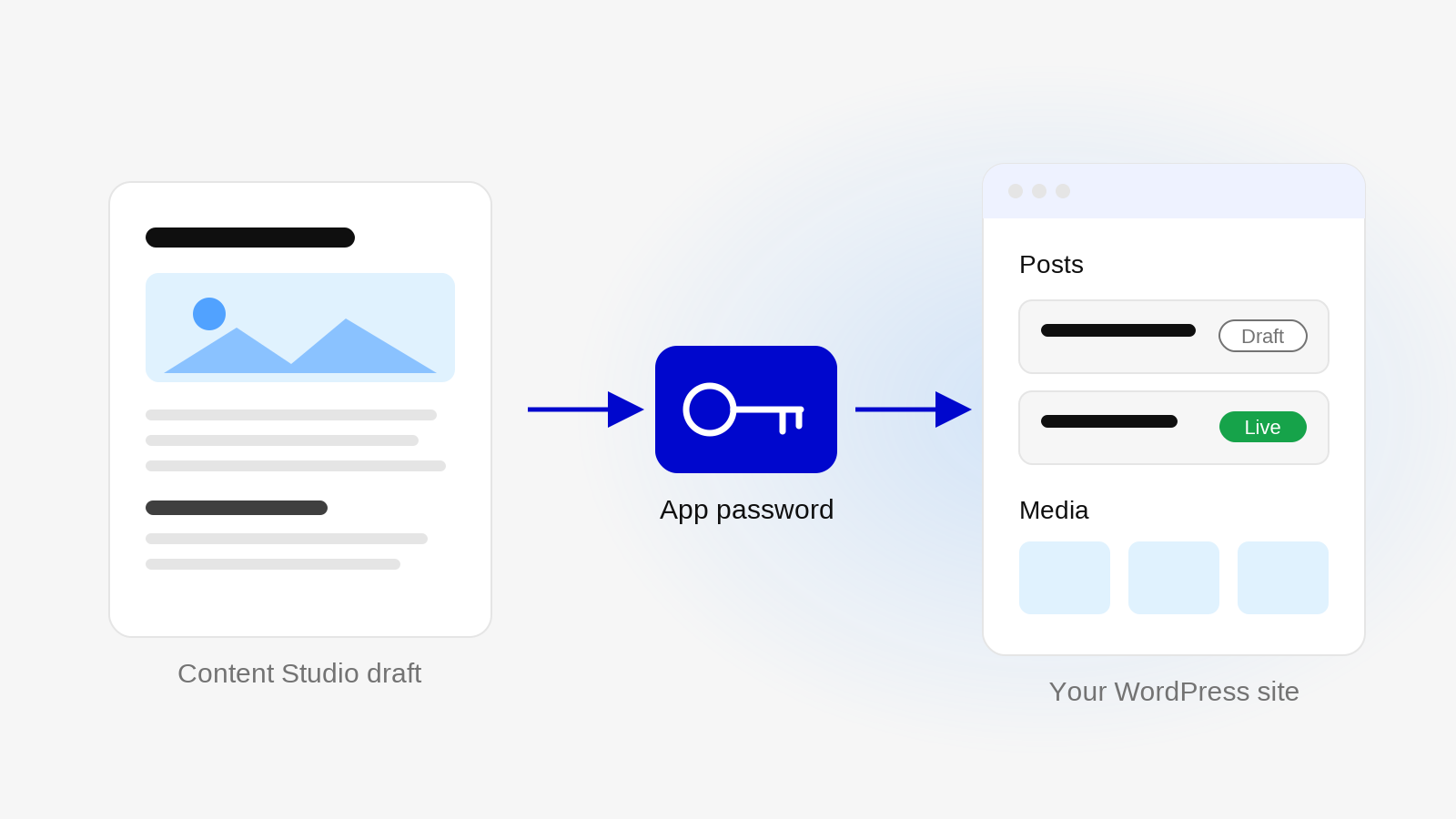
Content Studio publishes to WordPress through your site's built-in REST API, using an application password you create in your WordPress profile: no plugin and no shared login. Set it up once per project and any finished article goes to your site as a draft, live, or on its calendar day.
Key takeaways
- You connect with three fields in Settings, Publish Controls: Site URL, Username and an application password made under Users, Profile in WordPress 5.6 or newer, on an https site.
- Each send carries the title, body, slug, the meta description as the excerpt and, if you tick Include images, the featured and in-article images uploaded to your Media Library.
- Categories, tags and an exact publish hour are not sent, so set those in the WordPress editor, which is why Draft is the safer first choice.
- Sending again updates the same post at the same URL, and overwrites any edits made inside WordPress since the last send.
- Scheduled articles can go out by themselves on their calendar day as a draft or live, and a failed send is retried every hour.
Content Studio talks to WordPress through its REST API
Content Studio sends articles to WordPress through the REST API, the built-in address on every WordPress site (yoursite.com/wp-json) that lets other software create and edit posts. You do not install a plugin. You give Content Studio three things once: your site address, your WordPress username and an application password, a second password WordPress makes for one outside app.
Application passwords arrived in WordPress 5.6 [2]. They work for the API but cannot be used to log in to your dashboard, and you can revoke one at any time from your profile [2]. That is the point: Content Studio never holds your real login.
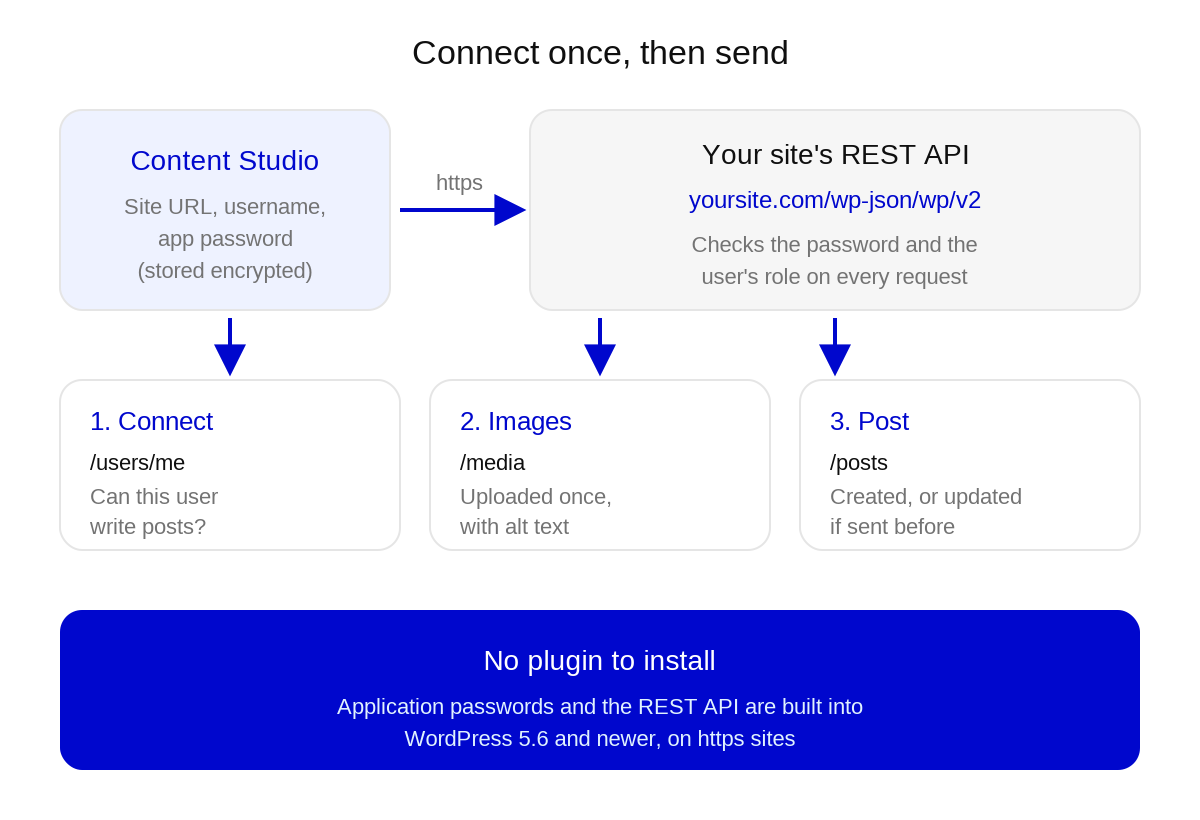
Every request goes over https, and Content Studio refuses plain http addresses. The password is stored encrypted and is never sent back to your browser.
Create an application password in WordPress
You make the password inside WordPress, not inside Answer Socrates. It takes about a minute.
- Log in to your dashboard at your site address followed by
/wp-admin. Everything before/wp-adminis your Site URL, for examplehttps://yourblog.com. - In the left menu, open Users, then Profile.
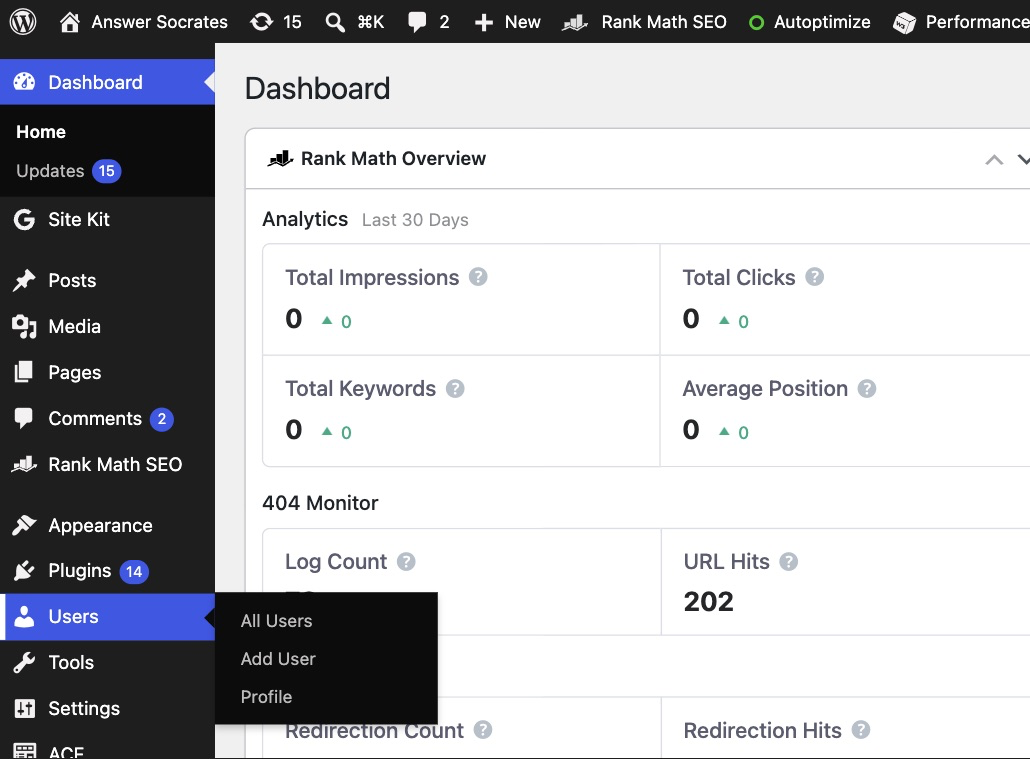
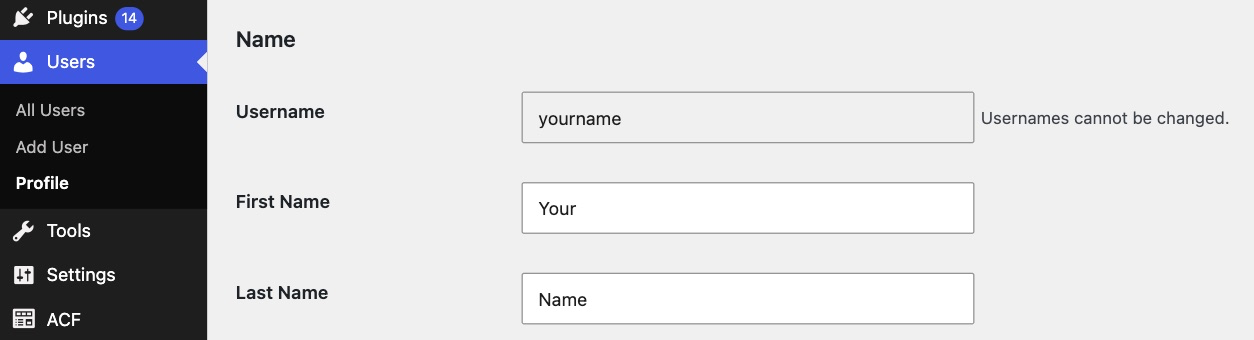
- Copy your Username from the top of the Profile page. It cannot be changed, and it is not always the name shown on your posts.
- Scroll down to Application Passwords, type a name such as "Answer Socrates" and click Add Application Password.
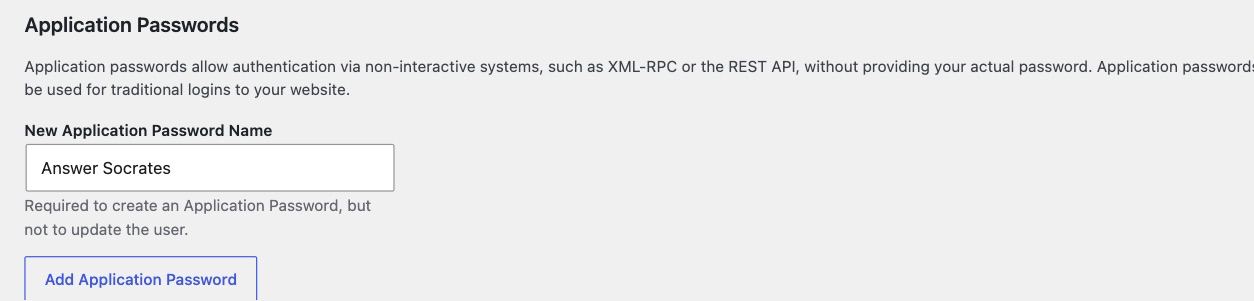
- WordPress shows the new password once: 24 characters in groups of four. Copy it straight away, spaces and all.
The account must be able to publish. WordPress's own roles page describes an Author as "somebody who can publish and manage their own posts", while a Contributor "cannot publish them" [3]. Use an Author, Editor or Administrator account.
Connect WordPress in Publish Controls
In Content Studio, open Settings and then Publish Controls, and choose WordPress (the tile reads "Self-hosted WordPress sites"). The form asks for three fields: Site URL, Username and Application Password. Click Connect.
Content Studio checks the details with your site before it saves them. It asks WordPress who the user is and whether that user can write posts. If the check passes, the settings page says it is publishing to your site as that user, with a Disconnect button for later.
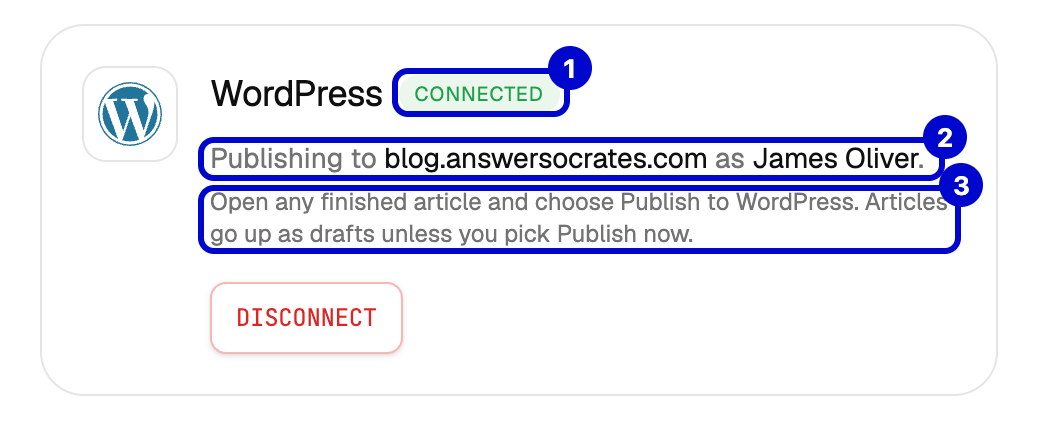
Each Answer Socrates project holds its own connection, so a project for your shop and a project for a client can send to two different sites. If WordPress lives in a folder, such as example.com/blog, type that full address; Content Studio keeps the folder.
What gets sent, and what you set in WordPress
Content Studio sends a fixed set of fields. Knowing the list saves you hunting for something that was never meant to go across.
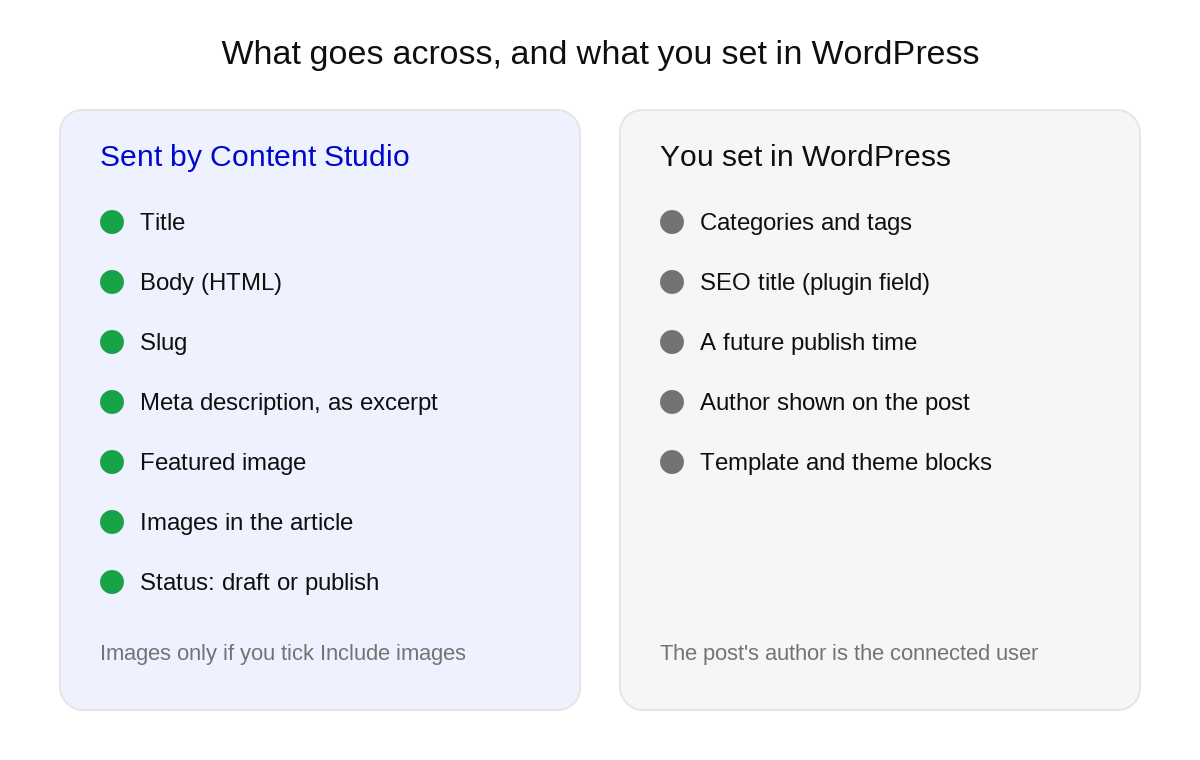
- Title, body and slug. The slug is the end of the post's URL (
/pour-over-vs-french-press). Content Studio makes one from the title if the article has none, and keeps an existing slug on later sends so a live URL never changes. - Meta description as the excerpt. WordPress calls the post summary the excerpt [1]. Many themes show it on archive pages. If an SEO plugin writes your meta description, check its field too, because Content Studio fills the excerpt, not the plugin.
- Images, if you tick Include images. The featured image and the images inside the article are uploaded to your Media Library with their alt text, and the post points at WordPress's copies.
- Status. Draft or publish.
WordPress's API can also take categories, tags and a future date [1]. Content Studio does not send those, so set categories and tags in the WordPress editor before the post goes live. The post's author is the user you connected with.
Send an article: draft, publish now or update
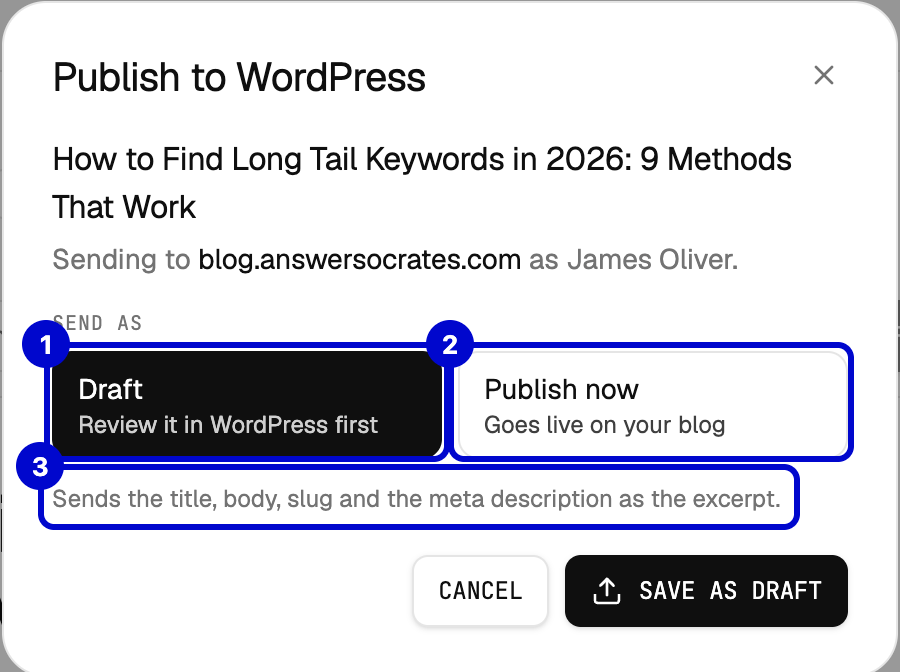
Open a finished article and choose Publish to WordPress. The dialog names the site and the user it is sending as, and offers two choices.
| Choice | What happens in WordPress | Use it when |
|---|---|---|
| Draft ("Review it in WordPress first") | A draft post appears in Posts, not visible to readers | Your first send, or any post that needs categories, a hero tweak or a final read |
| Publish now ("Goes live on your blog") | The post is live at once | You have checked this template before and trust the output |
| Update draft / Update live post | The post you sent before is replaced, same post and same URL | You fixed something in Content Studio and want it on the site |
After a send, the button changes to show where the article is ("Draft on WordPress" or "Live on WordPress") with a View on WordPress link. Sending again updates the same post rather than making a copy. If someone deleted that post in WordPress, the next send creates a new one.
Schedule articles on the content calendar
Content Studio plans articles on a calendar. In Publish Controls, the Scheduled articles setting decides what happens when a written article's day arrives: don't send, send a draft, or send it live.
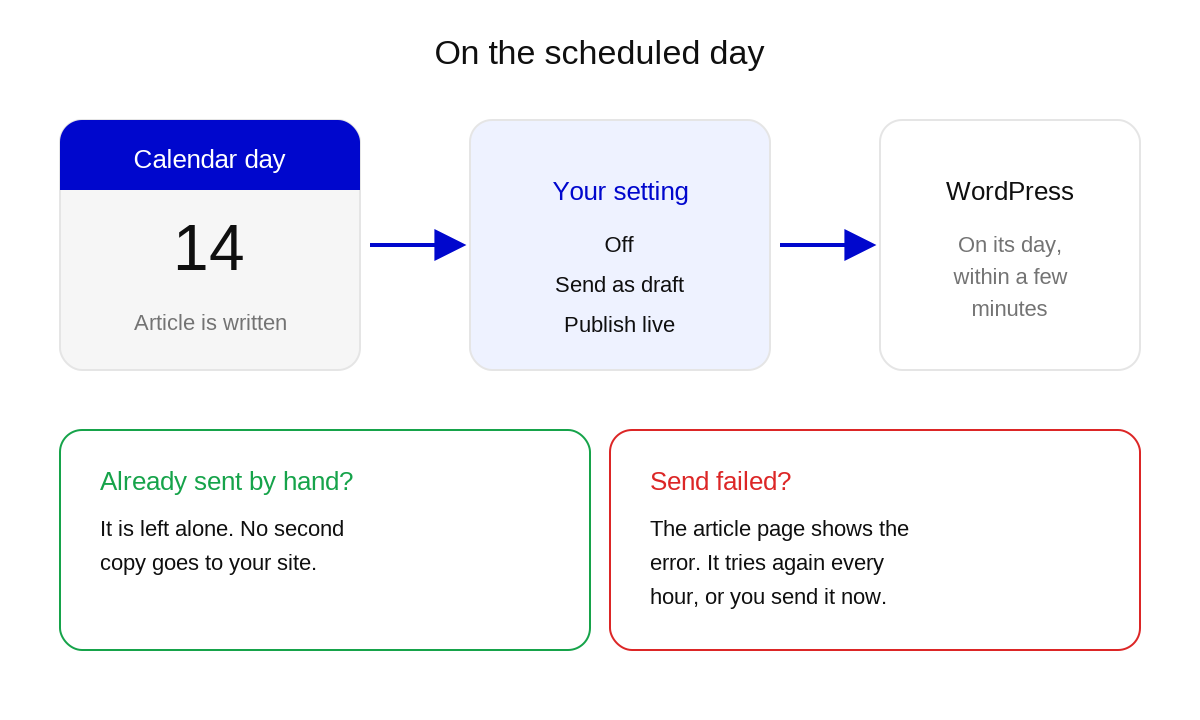
- Don't send. Scheduled articles wait for you to send them by hand.
- A draft. Each article lands in WordPress as a draft on its day, for you to review and publish there.
- Live. Each article goes live on its day. Articles you already sent by hand are not sent again.
If a scheduled send fails, the article page shows the error and says it will try again every hour, or you can send it yourself.

Content Studio schedules by day. WordPress can schedule a post for an exact hour itself, using its "future" status [1]. If the hour matters (a launch at 9am), send a draft and set the time in the WordPress editor.
A made-up example: a coffee roaster's Tuesday posts
A made-up example: a small coffee roaster runs its shop blog on WordPress and plans one article every Tuesday.
- The owner creates an Author account for the blog, then an application password named "Answer Socrates" on that account.
- In Publish Controls they connect
https://roaster.example, and the check passes. - "Pour over vs french press" is written on Monday. On Tuesday morning it arrives as a draft, with its featured image in the Media Library.
- In WordPress they add the "Brewing guides" category, read it on their phone in the real theme and press publish there.
- A week later a customer points out a wrong grind size. They fix it in Content Studio and choose Update live post. The URL stays the same.
The roaster never shares the main admin login, and can cut Answer Socrates off by revoking one password.
The same thing in Ask Socrates
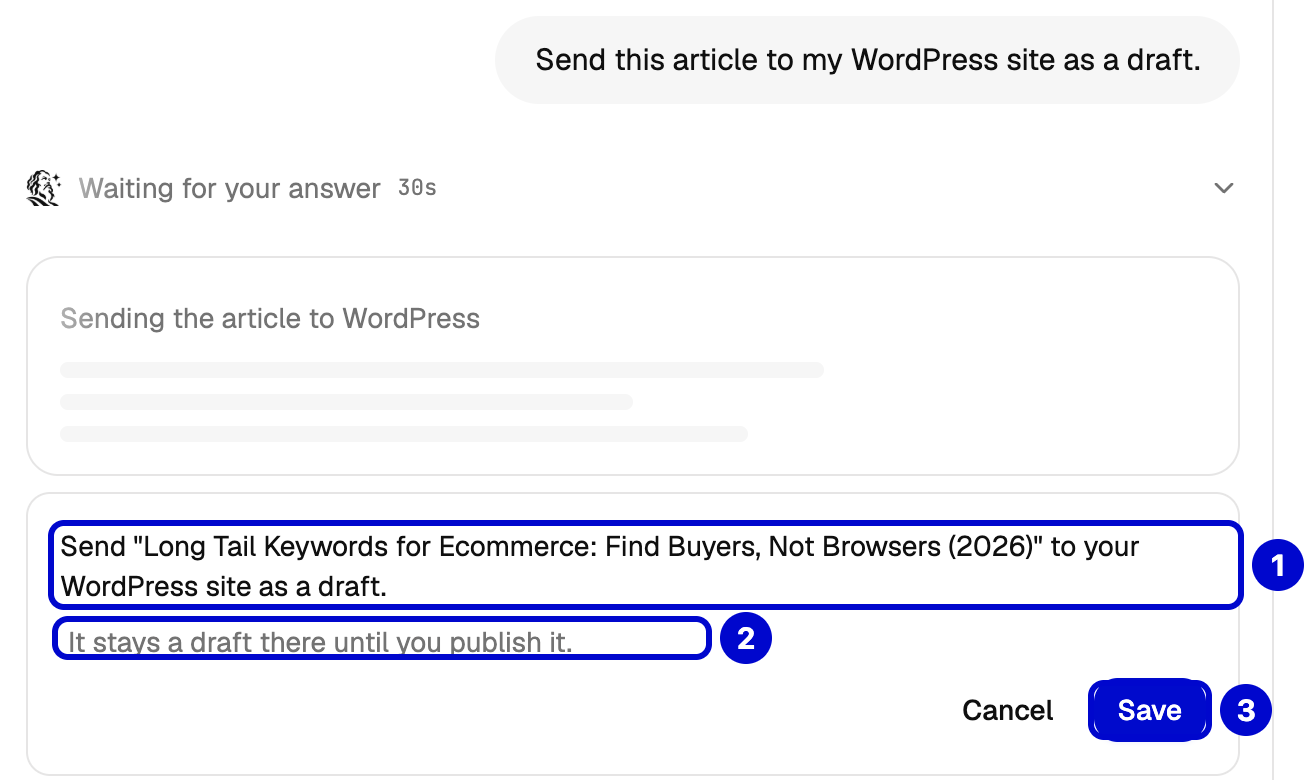
If the article was written from the Ask Socrates chat, you can send it from there too. Type:
The chat always asks first on a card ("Send ... to your WordPress site as a draft") and waits for you to press Save; Cancel sends nothing. It sends a draft unless you say live. It can only send an article it wrote in that same chat: in a new chat, name an article by its title and it will say it has no id for it. It uses the same WordPress connection from Content Studio settings, so connect there first.
When the connection fails
Most failures come from the site, not the article. Content Studio turns WordPress's answer into a plain message. Here is what each one means.
| Message starts with | Likely cause | Fix |
|---|---|---|
| "WordPress rejected that username or application password" | A typo, or the login email used instead of the username | Copy the Username field and make a fresh application password |
| "That WordPress user isn't allowed to do this" | The account is a Contributor or Subscriber | Use an Author, Editor or Administrator account [3] |
| "Couldn't find the WordPress REST API on that site" | Wrong address, or a security plugin blocking the API | Check the Site URL, then allow the REST API in the plugin |
| "Your site redirects the REST API" | You typed www and the site uses no www, or the reverse | Enter the address the message names |
| "Use your site's https:// address" | The site address starts with http | Connect over https; plain http is refused |
| "WordPress is rate limiting us" | Your host or a firewall limits requests | Wait a minute and try again |
Security plugins are the most common hidden cause. Some offer a switch to turn the REST API off for logged-out visitors or for everyone. WordPress's own developer FAQ says "You should not disable the REST API", because parts of the WordPress admin depend on it [4]. Allow it, at least for logged-in users with application passwords.
If an image fails to upload, the post still goes across without it, and Content Studio tells you which images were left out.
Where to go next
| If you want to... | Read |
|---|---|
| Write the article you are about to publish | Writing with Content Studio, step by step |
| Decide which articles go on the calendar first | From cluster to content plan: what to write first |
| Link the new post to your other pages | Internal links: connecting your pages |
| Read the draft once more before it goes live | Making AI writing sound human |
| Fix or remove old posts that no longer pull their weight | Content pruning: fixing or cutting weak pages |
Sources
- REST API Handbook: Posts reference, WordPress Developer Resources, n.d.
- Application Passwords: Integration Guide, Make WordPress Core, 2020
- Roles and Capabilities, WordPress.org Documentation, 2026
- REST API Handbook: Frequently Asked Questions, WordPress Developer Resources, n.d.
